EPUB vs PDF: Which Format Is Best for Reading on Your E-Reader?
PDF looks perfect on a laptop but falls apart on a 6-inch Kindle screen. This guide breaks down exactly how EPUB and PDF differ, why it matters for your reading experience, and how to convert web content into clean EPUB files.
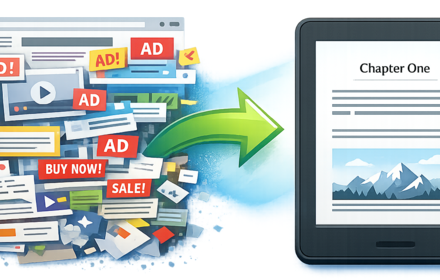
Key Takeaways
- EPUB reflows text to fit any screen size; PDF locks content in a fixed layout designed for print
- On a 6-inch e-reader, PDFs mean tiny text, constant zooming, and no font customization
- EPUB supports adjustable fonts, text-to-speech, and works on every major e-reader including Kindle
- Converting web articles directly to EPUB from HTML produces much cleaner results than PDF-to-EPUB conversion
- Tools like Cepub can batch-convert up to 50 web articles into a single EPUB with proper chapter navigation
You found an incredible 10-part tutorial series on a dev blog. Or maybe it's a long-form essay you've been meaning to read for weeks. You think, "I'll just save this and read it on my Kindle later."
So you hit "Save as PDF," transfer it to your e-reader, and... it's unreadable. Tiny text. Constant zooming and panning. Code blocks cut off at the edges. The navigation bar, cookie banner, and footer are all baked into the file. On a 6-inch screen, you're basically squinting at a shrunken screenshot of a desktop webpage.
Sound familiar? I've been there, more times than I'd like to admit.
I'm Cuong, a software engineer from Vietnam, and I spent countless late nights trying to read web articles on my Kindle while my daughter slept next to me. Phone screen? Too bright. So I turned to my e-reader. But getting web content onto it in a format that was actually readable turned out to be a surprisingly painful problem.
The root of the issue? PDF and EPUB are fundamentally different formats, and most people pick the wrong one for e-readers.
This guide breaks down exactly how EPUB and PDF differ, why it matters for your reading experience, and how to convert web content into clean EPUB files that look great on any e-reader.
The Core Difference: Fixed Layout vs. Reflowable Text
Here's the simplest way to understand the EPUB vs PDF debate.
PDF is a digital printout. PDFs are essentially digital printed documents, like having a piece of paper in your hand, except it's on the screen. PDFs can be viewed exactly the same as the original format. Every element (text, images, margins) is locked in position. That's amazing for contracts, research papers, and print-ready documents. But on an e-reader with a small screen? It's a disaster.
EPUB is built for screens. EPUB files automatically adjust to the size of your device, be it a smartphone, tablet, laptop, or e-reader, so that you have a great reading experience. This is called "reflowable," and it's a game-changer.
This single architectural difference (fixed vs. reflowable) cascades into every aspect of the reading experience.
Why PDFs Fail on E-Readers
If you've ever tried sending a PDF to your Kindle or Kobo, you already know the pain. But let me spell it out, because understanding why PDFs fail helps you make better format choices.
You can't change the font size
This is the #1 thing people don't realize until they're staring at 8pt text on a Kindle Paperwhite. Reading a PDF on Kindle is not comfortable, though Kindle does support the PDF format. You cannot adjust the font size of a PDF document on a Kindle. With an EPUB, you control fonts, margins, line spacing, everything. With a PDF, what you see is what you get.
Constant zooming and panning
Unlike PDFs, which require constant zooming and panning, EPUBs ensure that the text is always perfectly sized and easy to read. On a 6-inch e-ink screen, a document designed for 8.5x11" paper means you're pinching, scrolling, and losing your place constantly.
Images become thumbnails
Most PDF files are adapted to the print page size, but the screen of a Kindle Paperwhite is much smaller. The PDF file's font is too small to view, especially for the images. Diagrams, screenshots, and code block images in technical blog posts? Essentially useless in PDF on a small e-reader screen.
Firmware updates can break things
Paperwhite 6th Gen users often face PDF opening errors and file compatibility issues after firmware updates. This is a real and recurring frustration: PDFs that worked yesterday might not open today after a Kindle update.
Web clutter gets baked in
When you "Save as PDF" from a browser, the PDF captures everything: the navigation bar, sidebar, cookie consent popup, newsletter signup form, ads, footer. On an e-reader, all of that junk takes up precious screen space and makes the actual article content nearly impossible to read.
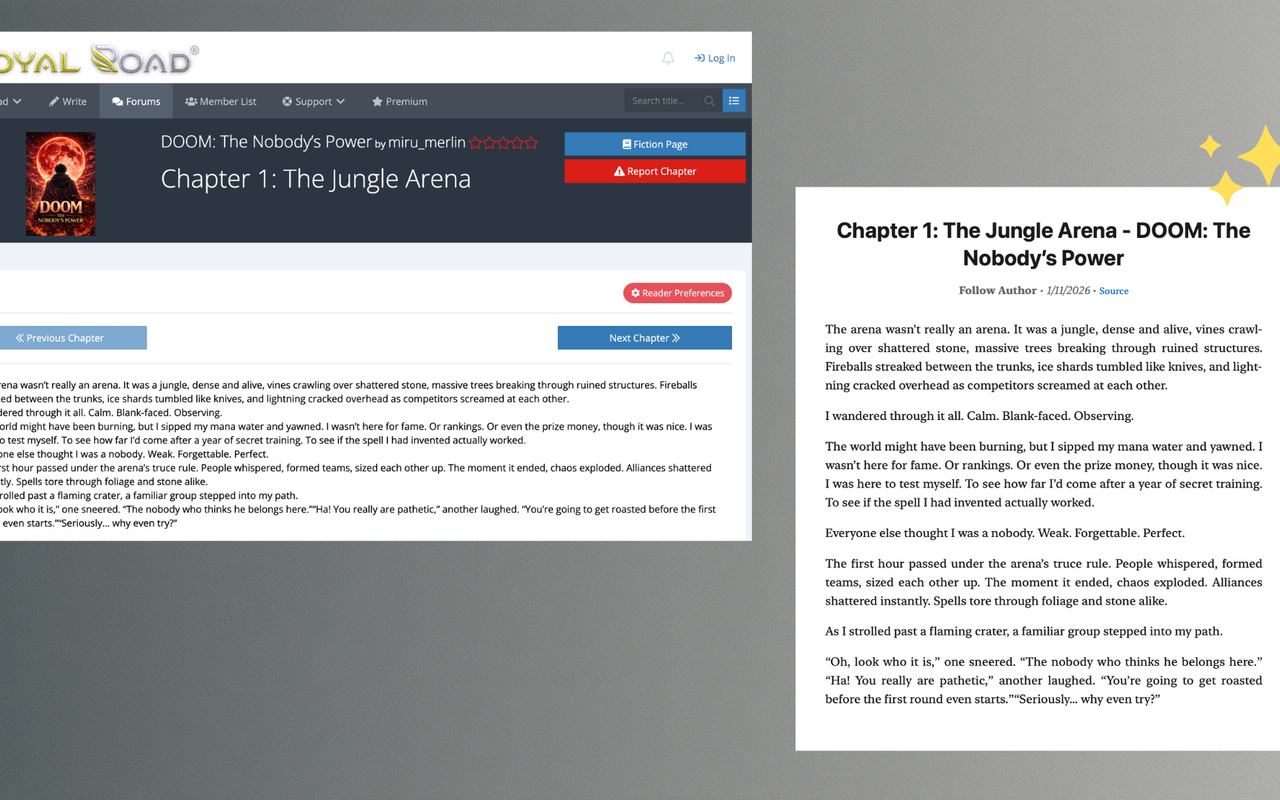
Left: A cluttered PDF with nav bars, ads, and footers. Right: Clean EPUB with only the article content.
Why EPUB Wins for E-Reader Reading
EPUB was literally designed for the way e-readers work. Here's what that means in practice:
Text reflows to fit your screen
When it comes to EPUBs, they are much more flexible. Reflowable EPUBs, in particular, adjust text and images to fit any screen, from smartphones to tablets. Whether you're reading on a 6-inch Kindle, a 7-inch Kobo Libra, or a 10-inch tablet, the content adapts.
Full customization of your reading experience
With the ability to highlight, resize, and bookmark, EPUBs are very reader-friendly. Change font size, font family, margins, line spacing, background color. EPUB lets you make the content yours.
Better accessibility
EPUB is designed with accessibility in mind. It supports features like text-to-speech, screen readers, and navigation aids for the visually impaired. Additionally, EPUBs allow publishers to include metadata that describes the structure of the content, making it easier for assistive technologies to provide a better reading experience.
Universal e-reader support
Created and certified by the International Digital Publishing Forum (IDPF) in 2007, EPUB is the most widely supported vendor-independent eBook format. Simply put, more eBook readers can read EPUB than any other format in the world. Even Amazon now accepts EPUB. Now that Amazon has converted to using EPUB files, there is no need to use MOBI. Amazon now accepts EPUBs on its marketplace but converts them to their own AZW3 file during upload.
Smaller file sizes
EPUB uses compressed HTML and CSS under the hood, while PDF stores fixed layout positioning data for every element on every page. For the same web article, an EPUB file is typically significantly smaller than its PDF equivalent, which matters when you're loading 50 articles onto a Kindle with limited storage.
The Real Problem: Getting Web Content Into EPUB
Here's the thing that every "EPUB vs PDF" article on the internet misses.
Those articles are all written for book authors deciding which format to publish in. But if you're reading this, you're probably not publishing a novel. You're a developer, a researcher, or a curious reader who wants to take web articles (blog posts, tutorials, documentation) and read them comfortably on your e-reader.
And for that use case, the question isn't "EPUB vs PDF?" It's "How do I turn this web page into a clean EPUB?"
I tried everything. Browser "Print to PDF" was terrible. Copy-paste into a document lost all formatting and images. Existing browser extensions would either miss images, duplicate content, include all the website clutter, or only let me convert one article at a time.
That frustration, combined with too many late nights squinting at my phone while my daughter slept, is why I built Cepub, a Chrome extension specifically designed to convert web articles into clean, well-formatted EPUB files.
How to Convert Web Articles to EPUB with Cepub
Here's my actual workflow. It takes about 30 seconds.
Step 1: Navigate to the Article
Open the blog post, tutorial, or documentation page you want to read on your e-reader.
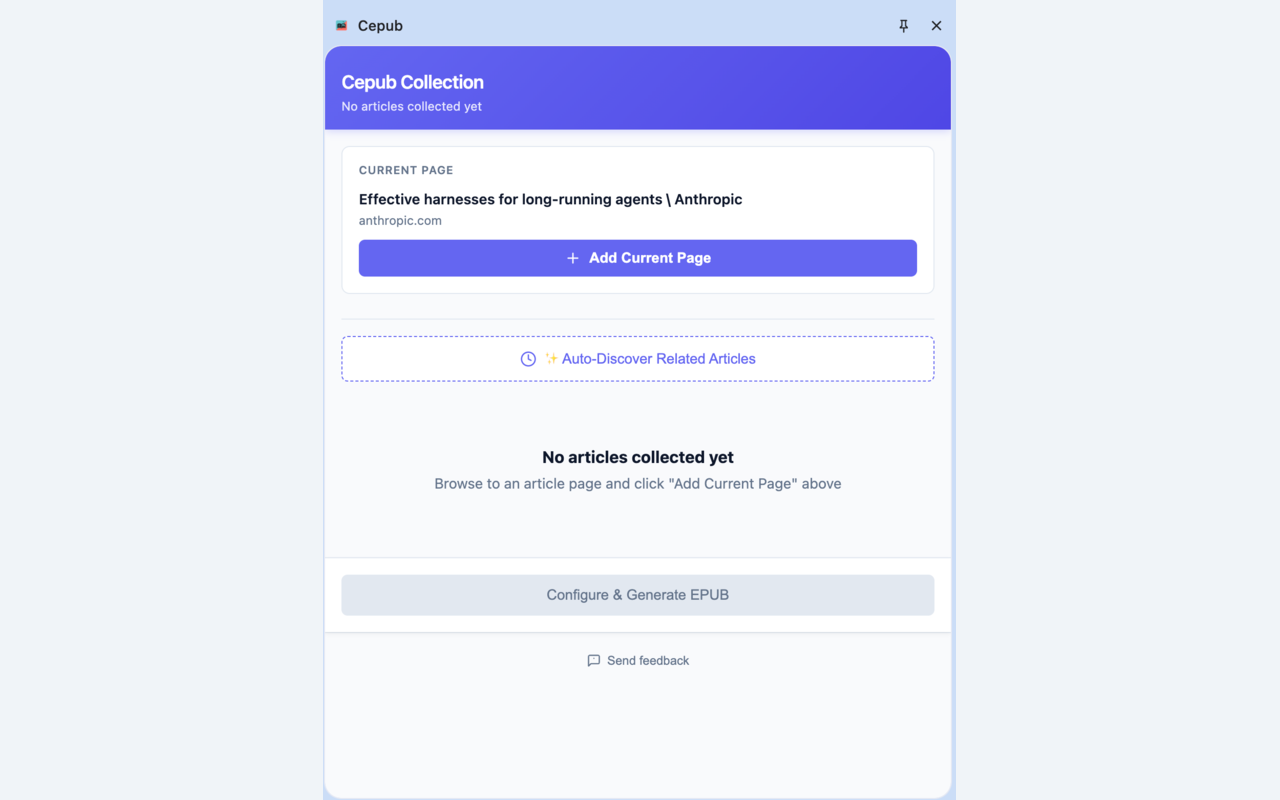
Open any article and click the Cepub icon to get started.
Step 2: Let Auto-Discover Find Related Articles
This is the feature I'm most proud of. Click the Cepub icon, and it automatically scans the page for related articles, like other parts of a tutorial series, or more posts by the same author. No more manually hunting for "Part 2," "Part 3," etc.
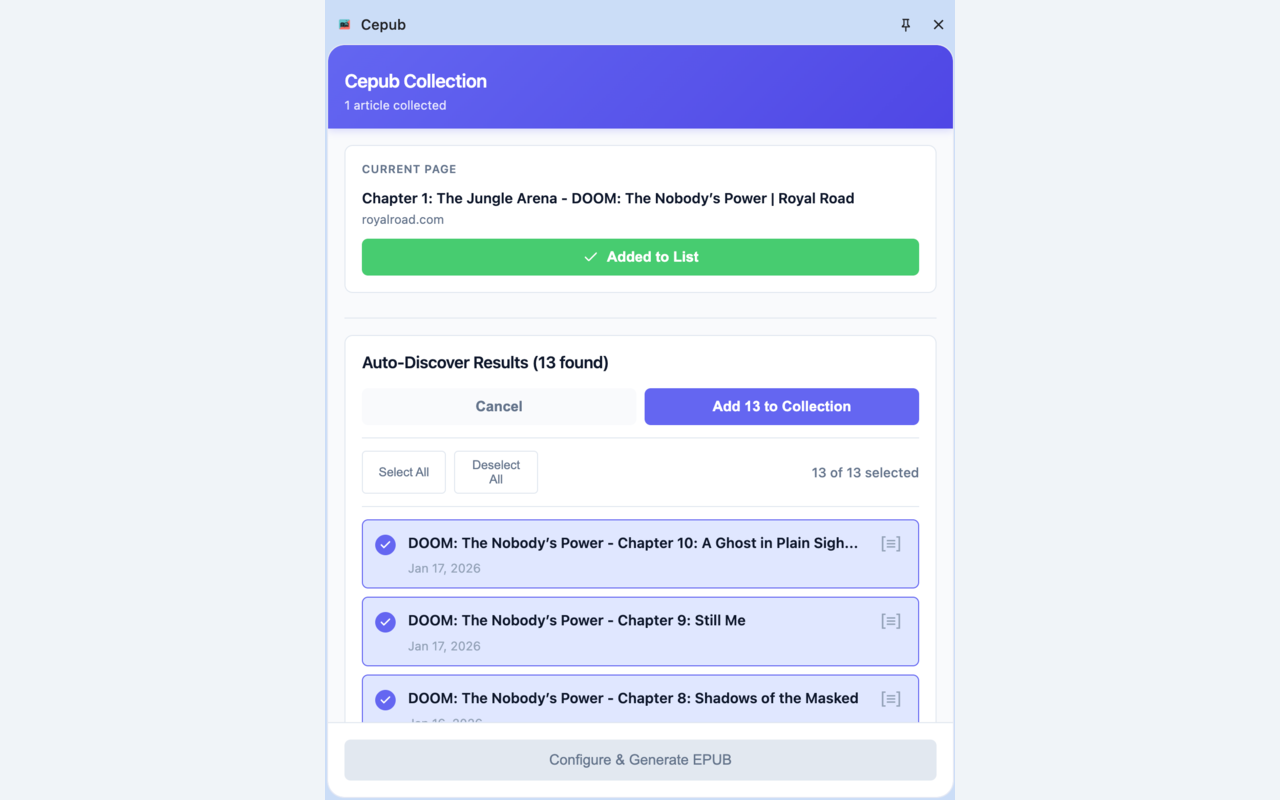
Auto-Discover found related chapters automatically, no manual URL copying needed.
Step 3: Select and Reorder Your Chapters
Pick which articles you want to include (up to 50 in one EPUB), then drag and drop them into the reading order you prefer.
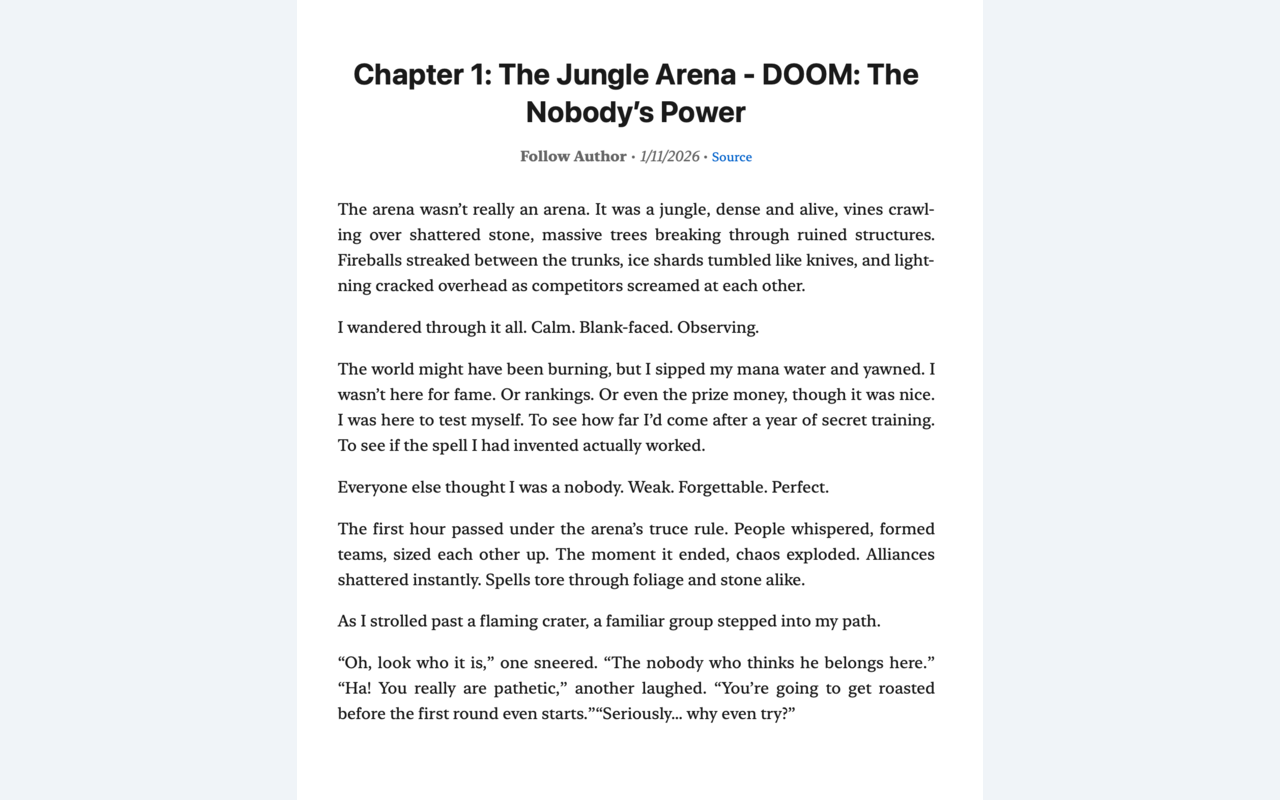
Drag and drop to reorder chapters before converting.
Step 4: Configure Your EPUB
Set a custom title, author name, and language. This metadata makes your EPUB look professional in your e-reader's library, instead of showing up as "Untitled" or a random URL.
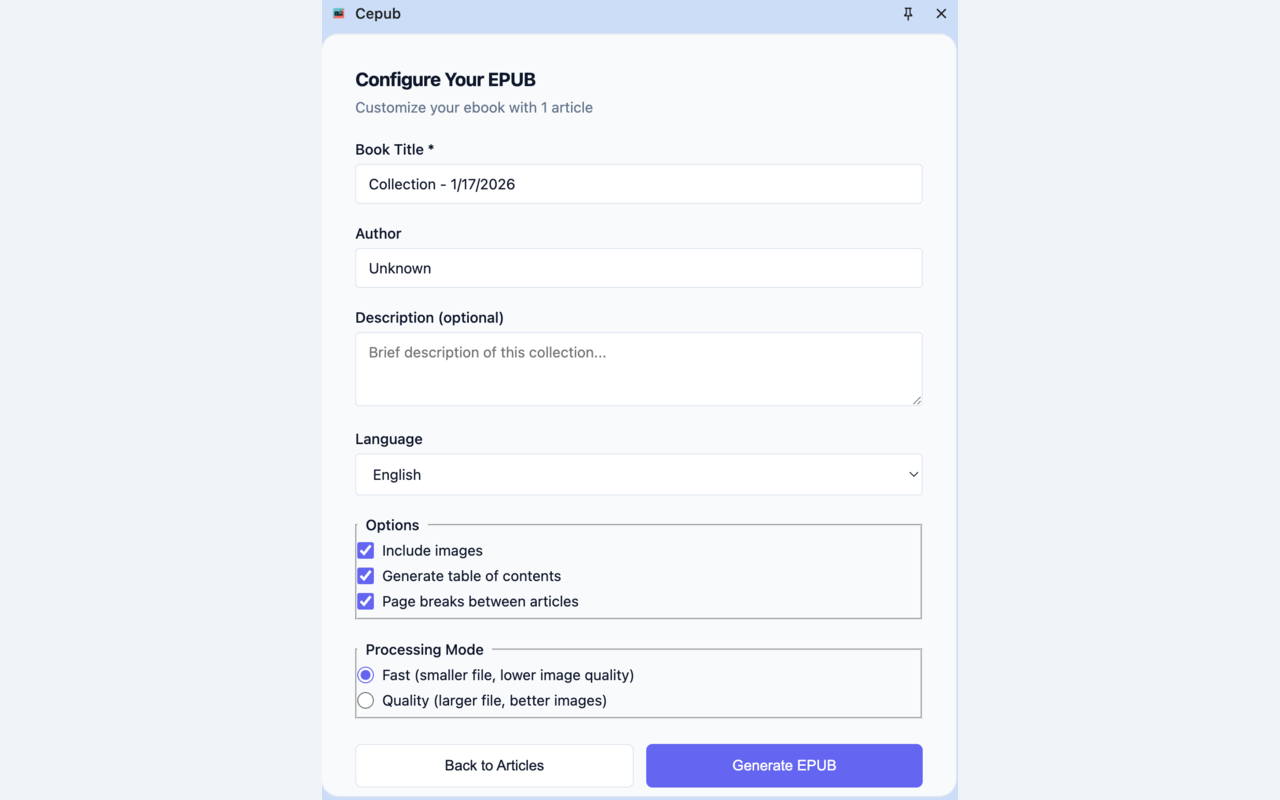
Configure your EPUB with custom title, author, language, and export options.
Step 5: Convert and Send to Your E-Reader
Hit convert. Cepub strips out the ads, navigation, headers, footers, popups, and cookie banners, keeping only the main content and images. Download the EPUB and transfer it to your Kindle, Kobo, or any other e-reader.
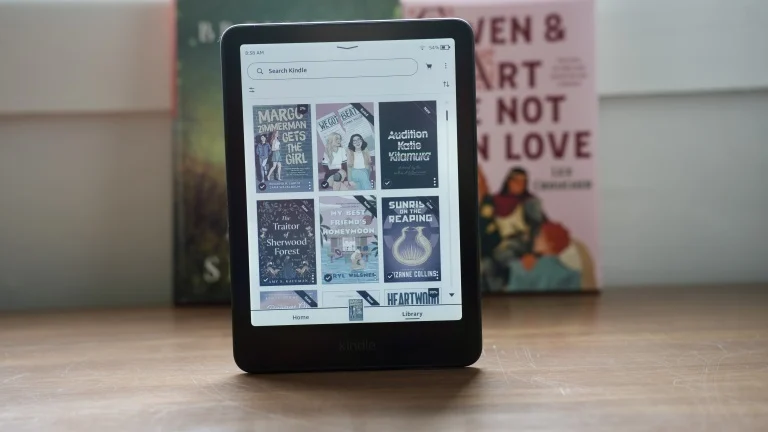
The result: clean, well-formatted articles ready to read on your Kindle.
The result? Clean, reflowable text. All images preserved and properly embedded. No web clutter. Adjustable fonts. A reading experience that feels like a real book, not a shrunken web page.
When PDF Is Actually the Better Choice
I want to be honest: PDF isn't always the wrong answer. There are specific scenarios where PDF makes more sense:
- Documents with precise visual layouts - academic papers with complex charts and tables, architectural plans, design mockups. These rely on exact positioning that reflowable EPUB would break.
- Documents that need to look identical everywhere - contracts, legal documents, official forms. If you're working with professional documents, academic articles, or anything requiring strict formatting, PDF will serve you better. It provides unmatched consistency and reliability.
- Print-ready content - if you need to print a document and want it to look exactly the same on paper as it does on screen, PDF is the right format.
But for reading web content on an e-reader? EPUB wins. Every time.
Quick Comparison: EPUB vs PDF for E-Readers
| Feature | EPUB | |
|---|---|---|
| Text reflow | Adapts to any screen | Fixed layout |
| Font customization | Full control | Locked |
| File size (web content) | Smaller (compressed HTML) | Larger (fixed layout) |
| Image handling on e-readers | Reflows with text | Stays at original size |
| Web clutter (if saved from browser) | Depends on conversion tool | Captures everything |
| E-reader compatibility | Universal | Varies by device |
| Accessibility (TTS, screen readers) | Built-in support | Limited |
| Batch conversion of web articles | With tools like Cepub | One page at a time |
| Ideal use case | Reading, long-form content | Print, official documents |
Tips Most People Don't Know
Tip 1: Kindle natively supports EPUB now (sort of)
You can send EPUB files to your Kindle via Amazon's Send-to-Kindle email, and it automatically converts them to Amazon's native format. No more messing with MOBI or AZW3 conversions manually.
Tip 2: Reading at night? EPUB + e-ink = zero eye strain
This is my personal use case. Unlike a phone or tablet, an e-ink screen with EPUB content produces zero blue light. When you're reading next to a sleeping child at 1 AM, this matters more than you'd think.
Tip 3: Batch convert a tutorial series into one book
Instead of sending 10 separate articles to your Kindle (cluttering your library), combine an entire tutorial series into a single EPUB with proper chapters. With Cepub, the Auto-Discover feature finds related articles automatically, so you don't have to hunt for every part of a series.
Tip 4: Always check your images
The biggest failure point of most web-to-EPUB conversion tools is images. They either skip them, break them, or link to the live URL (which fails when you're offline). Always verify that images are embedded, not linked. Cepub embeds images directly into the EPUB file so they work offline on your e-reader.
Tip 5: Set metadata before converting
A custom title and author in your EPUB's metadata means your e-reader library stays organized. Without it, you end up with a library full of "Unknown" entries that you can't tell apart.
Frequently Asked Questions
Is EPUB better than PDF for Kindle?
Yes, for reading purposes. Most of the time, the EPUB format is better for Kindle or Nook. E-readers are best for changing the layout of text, which EPUB does best. This lets you read smoothly on screens of all sizes and orientations. PDF on Kindle means no font adjustment, constant zooming, and a frustrating reading experience. EPUB reflows to fit the Kindle's screen perfectly.
Can I convert a web page to EPUB?
Yes. Converting web pages to EPUB ebooks not only lets you read offline anytime, but also provides a better reading experience. Tools like Cepub (a Chrome extension) let you convert web articles directly to EPUB with clean content extraction, image preservation, and batch conversion of up to 50 articles into a single file.
Does converting a PDF to EPUB fix the formatting issues?
Sometimes, but not reliably. Converting PDF to EPUB can introduce its own issues because PDF stores visual layout data, not semantic structure. It's much better to convert web articles directly to EPUB from the HTML source, which preserves the content's natural structure. That's exactly what browser extensions like Cepub do.
How many articles can I combine into one EPUB?
With Cepub, up to 50 articles in a single EPUB file. Each article becomes its own chapter with proper navigation. This is ideal for tutorial series, course materials, or building a personal reading collection on a specific topic.
Is the ebook market still growing?
Yes. The e-book market is expected to grow from USD 18.02 billion in 2025 to USD 18.85 billion in 2026 and is forecast to reach USD 23.6 billion by 2031 at 4.6% CAGR over 2026-2031. And it's not just traditional books: by 2029, there will be over 1.1 billion ebook consumers. The trend toward reading digital content on dedicated e-readers is only accelerating.
Start Reading Web Content the Right Way
Convert your first batch of articles and experience truly clean, focused offline reading on your Kindle or Kobo.
Try Cepub FreeConclusion
If you've been saving web articles as PDFs and suffering through tiny text and broken layouts on your e-reader, switch to EPUB. The format was designed for exactly this kind of reading experience.
And if you want the easiest way to go from "interesting blog post in Chrome" to "clean, well-formatted chapter on your Kindle," give Cepub a try. It's a Chrome extension that does one thing well: converts web articles into clean EPUBs with images intact, no web clutter, and support for batch conversion.
No more pinch-and-zoom. No more unreadable code blocks. No more squinting at shrunken web pages. Just clean, comfortable reading, the way your e-reader was meant to be used.
Related articles:
- 7 Ways to Read Online Articles Offline on Any Device
- How to Read Articles Offline Without Ads, Popups, and Clutter
- How to Binge-Read Web Novels Offline Without Ads or Clutter
Sources
- Digital Reading Revolution: ePUB vs. PDF Explained - VitalSource
- EPUB vs. MOBI vs. PDF: Which Book Format Should You Use? - Kindlepreneur
- Top 7 Advantages of ePUB over PDF - Kitaboo
- EPUB vs PDF: Which Ebook Format Should You Choose? - Kotobee Blog
- What is the difference between PDF and EPUB when downloading eBooks? - EBSCO
- eBooks - Worldwide Market Forecast - Statista
- Ebook Market Share, Size, Trends and Industry Analysis - Mordor Intelligence
- Kindle Paperwhite and PDFs - The Problems - MobileRead Forums
- Complete Guide to Converting Web Pages to EPUB eBooks - E-Ink Blog