How to Read Articles Offline Without Ads, Popups, and Clutter
Tired of clicking past newsletter modals and cookie banners? Learn how to convert web articles to clean EPUB files for distraction-free reading on your Kindle or Kobo.
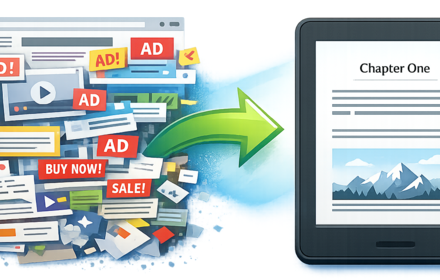
Key Takeaways
- Most EPUB converters grab entire web pages, including headers, footers, ads, and cookie banners
- Cepub uses smart content detection to extract only the article text and images
- Convert up to 50 articles into a single EPUB with proper chapter navigation
- EPUB files are yours forever, unlike read-it-later apps that can shut down
- E-readers with e-ink screens eliminate eye strain for late-night reading sessions
It's 10 PM. You just finished reading an exciting engineering post from Anthropic's blog. Your daughter needs you in her room to help her sleep. You grab your phone, thinking you'll continue reading, but the screen's too bright. You dim it, but now you're squinting.
Then a popup appears: "Subscribe to our newsletter!" You close it. Another one: "Accept cookies." You scroll past an ad. Then another. Your focus breaks, and before you know it, you're doom-scrolling Twitter instead.
This happened to me countless times before I finally said: enough.
I wanted to read technical articles on my Kindle. It's a device designed for reading, with an e-ink screen that doesn't strain my eyes in a dark room. But every EPUB converter I tried failed me.
I'd convert blog posts, open the file on my Kindle, and have to click "next page" 15 times just to get past the header, footer, and newsletter modal that appeared in every single chapter. When you're trying to read a 50-article tutorial series, that's 750 unnecessary page turns.
So I built Cepub. Not as a business idea, but as the tool I desperately needed.
Why Browser Extensions and Read-It-Later Apps Fall Short
Most solutions for ad-free reading fall into two categories, and both have critical limitations:
Browser Reader Modes
Extensions like Reader Mode strip away clutter while you're reading in your browser. They work well for single articles, but you're still tethered to your laptop or phone screen.
- Can't read on an e-reader
- Can't customize fonts the way e-readers allow
- If the website goes down, your access disappears
Read-It-Later Apps
Apps like Pocket (discontinued in July 2025 after serving 10 million users) or Instapaper solve the "save for later" problem, but they lock you into their ecosystem.
- Need an internet connection
- Need their app installed
- When they shut down, you lose your entire library
What I needed was something different: permanent, offline access on my e-reader, with perfect formatting.
The EPUB Solution: Own Your Content Forever
EPUB files solve all these problems:
| Benefit | Why It Matters |
|---|---|
| Permanent ownership | Files can't disappear when a website goes offline |
| Universal compatibility | Works on Kindle, Kobo, Apple Books, and more |
| Fully customizable | Adjust font size, typeface, line spacing, and margins |
| Completely offline | No internet required, no ads loading in background |
Unlike PDFs with fixed layouts, EPUBs adapt to your reading preferences. This is crucial for comfortable reading on any device.
Why Most EPUB Converters Fail
After converting 100+ articles, I discovered why existing tools produce such poor results:
The Content Extraction Problem
Most converters use simple HTML scraping. They grab everything on the page: navigation bars, sidebars, "Related Articles" sections, cookie banners, newsletter popups, ads, and footers.
When I converted Anthropic's engineering blog, each article included:
- A full navigation header with 20+ links
- A "Subscribe to our newsletter" modal
- A complete footer with 50+ links
- Social sharing buttons
That meant clicking "next page" 15+ times per chapter just to reach the actual content. Across a 20-article series, that's 300 unnecessary page turns.
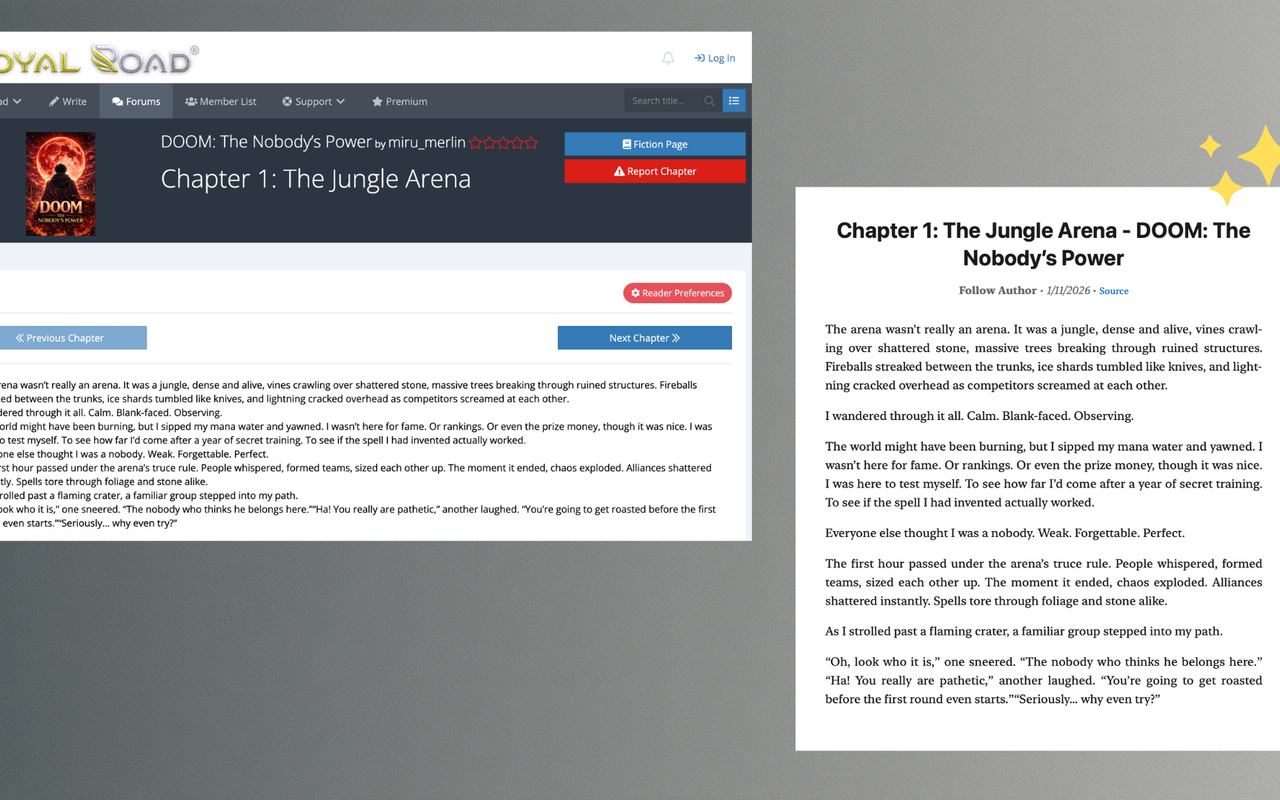
Left: Original cluttered article. Right: Clean extracted content ready for your e-reader.
The Image Problem
Images break in most converters because they link to external URLs that don't load offline, get embedded incorrectly, or disappear entirely if the website uses lazy-loading.
The Structure Problem
When you batch-convert a tutorial series, the order matters. Most tools don't let you organize chapters, leaving you with a jumbled mess.
How Cepub Solves These Problems
I built Cepub to fix these exact issues. Here's how it works:
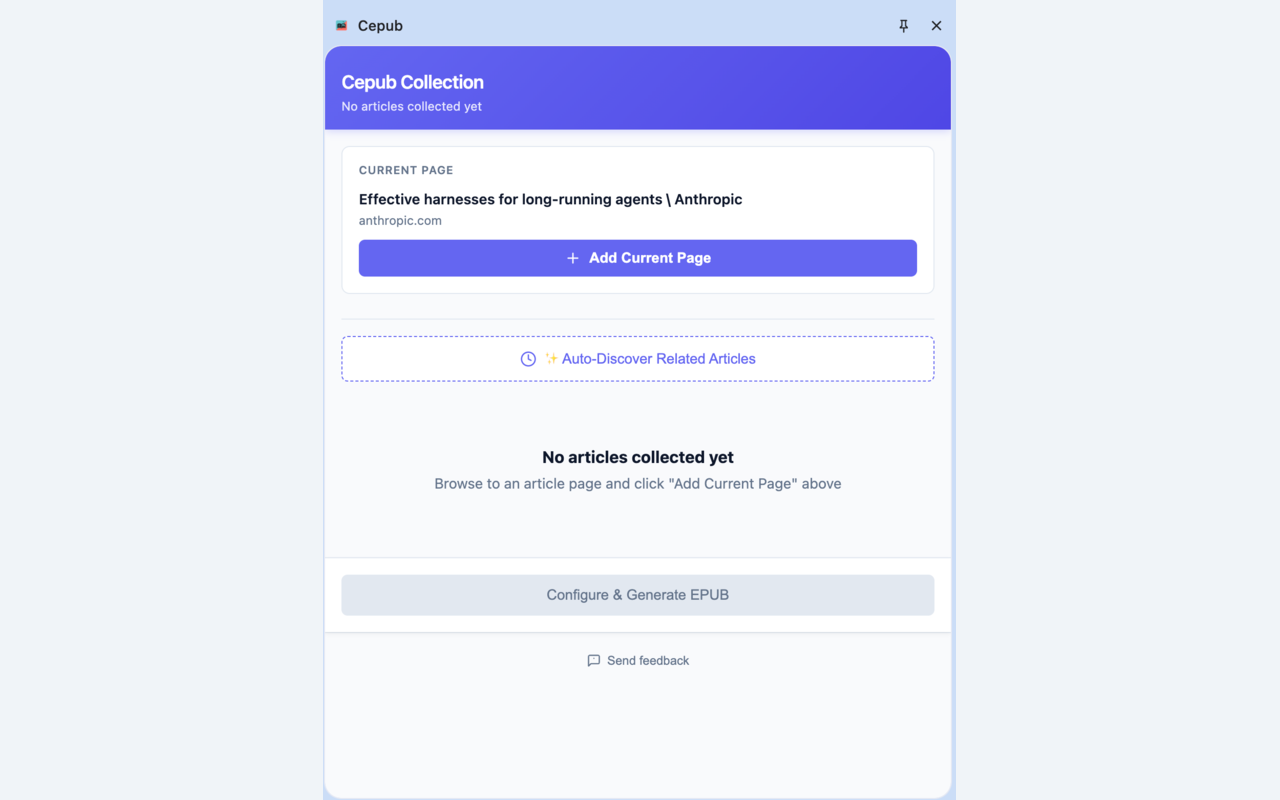
The Cepub extension interface - simple and focused on getting you reading faster.
Step 1: Auto-Discover Related Articles
Start from any article and Cepub finds related content automatically. Instead of manually copying each chapter URL, the Auto-Discover feature scans the page and finds related articles in seconds.
This turns a 30-minute manual task into 30 seconds.
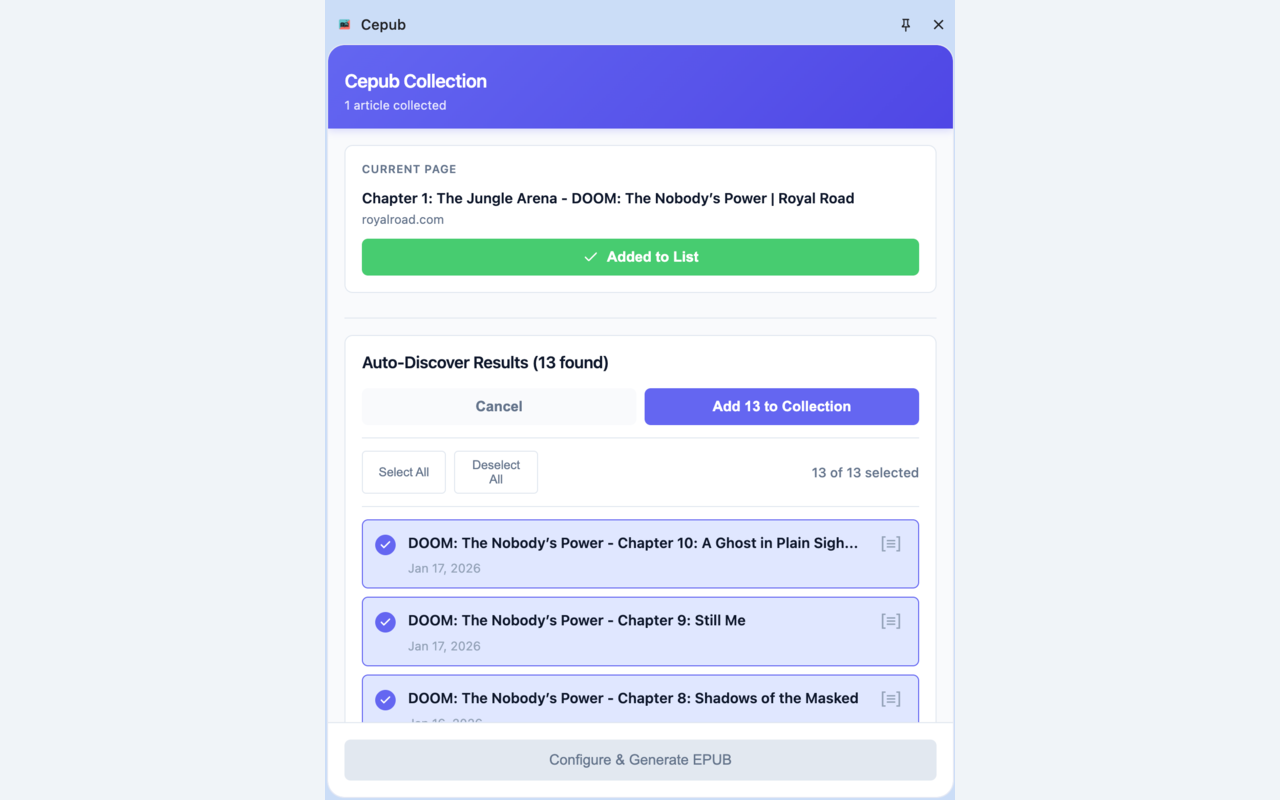
Auto-Discover found 13 chapters automatically - no manual URL copying needed.
Step 2: Smart Content Extraction
Unlike generic converters that grab entire HTML pages, Cepub uses intelligent content detection to identify the actual article and strips everything else.
When I re-converted those Anthropic posts with Cepub, each chapter started directly with the article title and content. No headers. No footers. No newsletter modals.
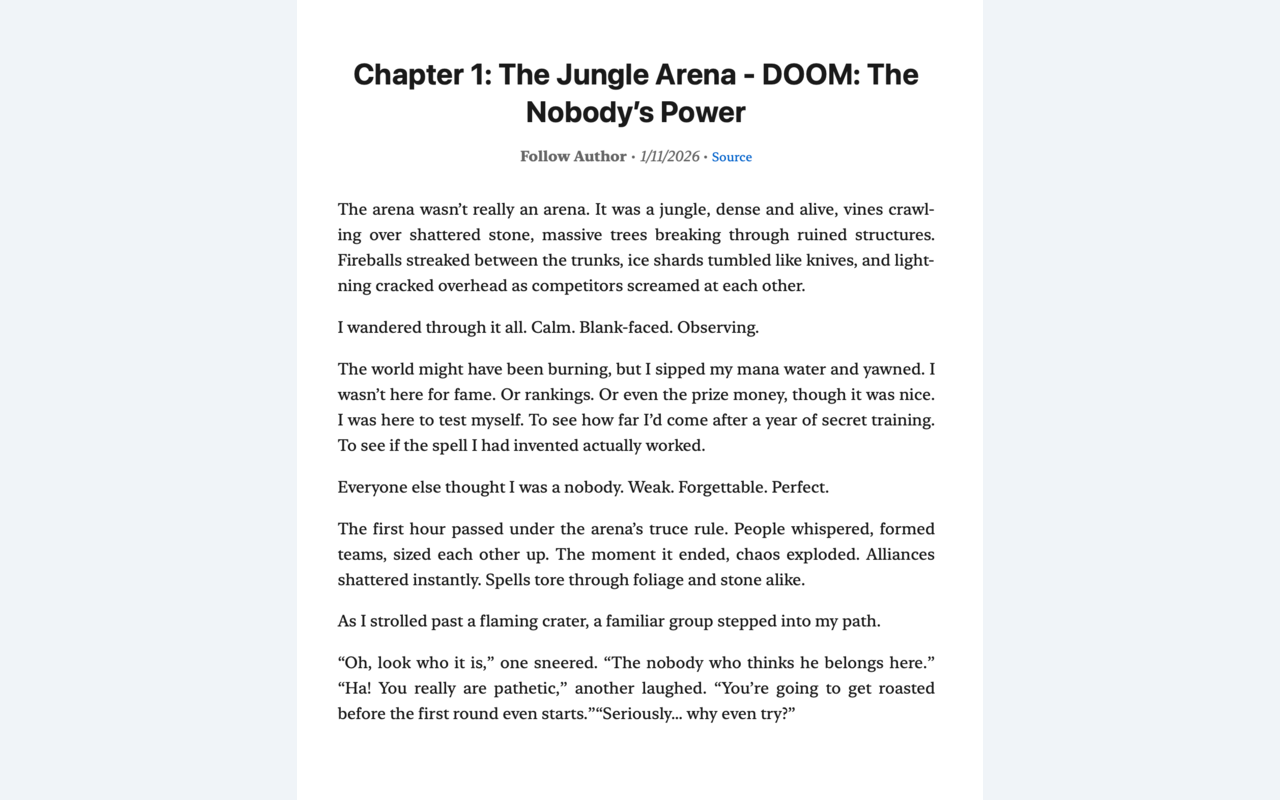
Clean extraction - just the content you want to read.
Step 3: Organize Your Chapters
Before converting, drag and drop articles to reorder them. This is crucial for tutorial series where reading order matters.
Step 4: Convert and Transfer
Set your EPUB metadata, hit convert, and Cepub handles image embedding automatically. Send the file to your Kindle via email, or load it onto your Kobo via USB.
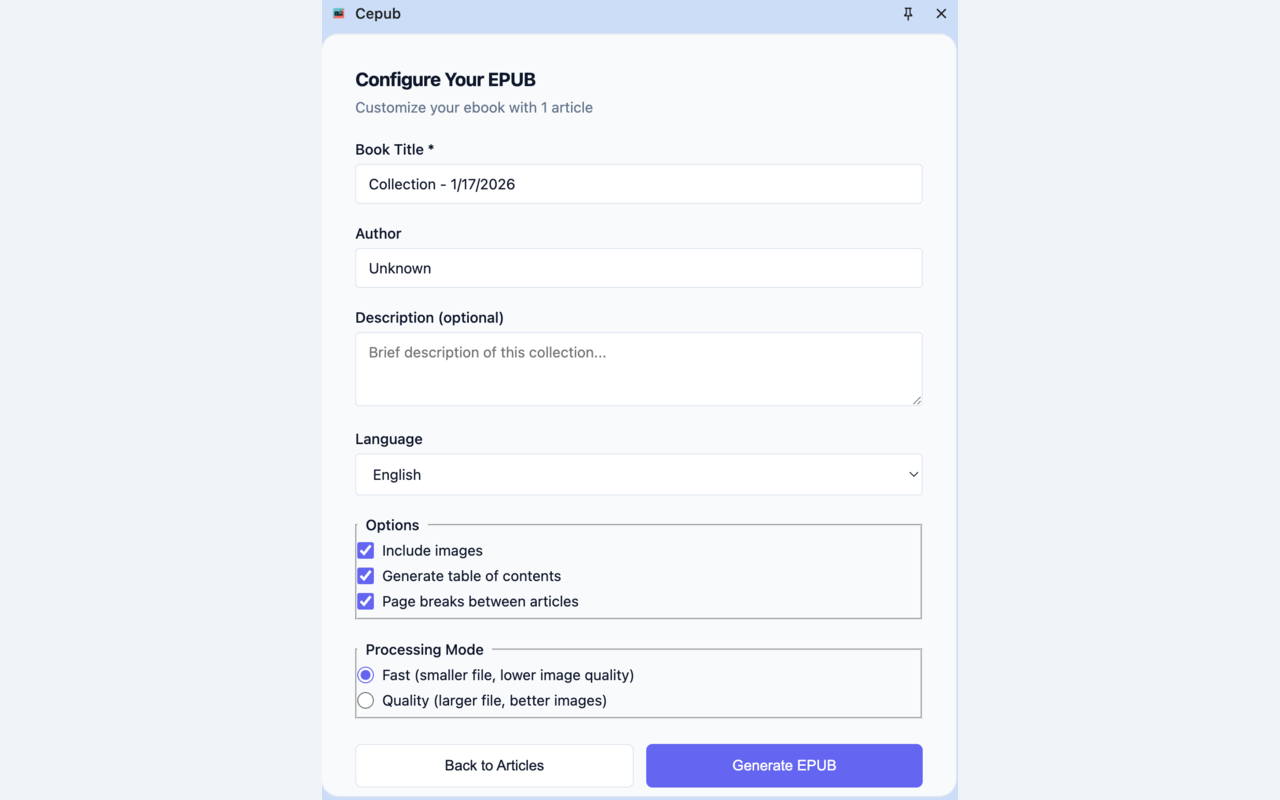
Configure your EPUB with custom title, author, and export options.
My Weekly Reading Workflow
Here's how I use Cepub every week:
- Friday afternoon: Browse technical blogs or novel sites
- Auto-Discover: Find all related articles in one click
- Quick review: Uncheck articles I don't want, reorder if needed
- Convert: 50 articles convert to EPUB in about 60 seconds
- Transfer: Email the EPUB to my Kindle
- Weekend reading: Read distraction-free on my e-reader
This workflow transformed how I learn. Instead of fighting with browser tabs and notifications, I read deeply.
Tips for Better Ad-Free Reading
1. Batch Convert by Topic
Don't convert one article at a time. When you find a good author or tutorial series, convert everything related at once. Cepub supports up to 50 articles per EPUB.
2. Customize Your E-Reader Settings
EPUBs shine because they're customizable. On your Kindle or Kobo:
- Increase font size for late-night reading
- Choose a font that's easier on your eyes (I prefer Bookerly on Kindle)
- Adjust line spacing and margins
3. Build a Personal Library
Unlike read-it-later apps that can shut down, EPUBs are files you own. Keep a folder of converted technical docs, tutorial series, and research papers. They're always accessible, no internet required.
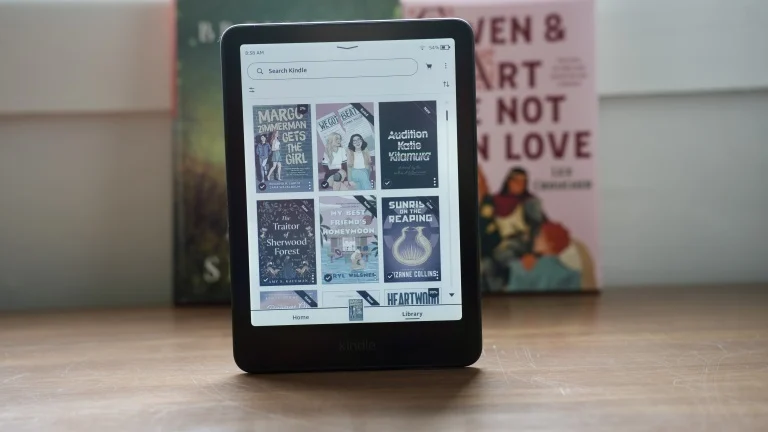
Your personal library of converted articles, always available offline.
4. Test Before Long Series
Before converting a 100-chapter novel, convert the first 5 chapters and check quality on your e-reader. This saves time if you need to adjust settings. For web novel readers, check out our dedicated guide on binge-reading web novels offline.
5. Use Descriptive Titles
When configuring your EPUB, use descriptive titles like "Anthropic Engineering Blog - Agent Systems (2025)" instead of generic names. Future you will thank you.
Known Limitations
Cepub works great for most content, but here's what to expect:
- JavaScript-heavy sites: Some modern sites load content dynamically. Wait until the page fully loads before converting.
- Paywalled content: Cepub can only convert what you can access in your browser.
- Interactive content: Embedded videos and JavaScript widgets don't work in EPUBs.
Frequently Asked Questions
Can I convert articles from any website?
Yes, as long as you can view the content in your browser. Cepub works with blogs, documentation sites, news articles, tutorials, and novel sites. The cleaner the original HTML, the better the extraction.
How many articles can I convert at once?
Cepub supports up to 50 articles per EPUB. This is plenty for most tutorial series, book collections, or weekly reading batches.
Will images work offline?
Yes. Cepub embeds images directly into the EPUB file, so they display correctly on your e-reader without internet.
What if the content extraction misses something?
Cepub uses smart content detection that works on most sites. If you notice missing content, you can report it and I'll improve the extraction algorithm.
Can I use this on mobile?
Cepub is a Chrome extension, so it works on desktop Chrome, Edge, Brave, and other Chromium-based browsers. Desktop is recommended for the best experience.
Start Reading Without Distractions
Convert your first batch of articles and experience truly clean, focused offline reading.
Try Cepub FreeConclusion
If you're tired of fighting ads, popups, and clutter, and you want to read deeply on a device designed for reading, EPUB conversion is the answer.
It won't magically create more reading time, but it will make the time you have far more productive. No more clicking past newsletter modals 15 times per chapter. No more squinting at bright phone screens. No more losing access when a website goes down.
Just clean, focused, offline reading on your Kindle or Kobo.