7 Ways to Read Online Articles Offline on Any Device
From browser reading lists to EPUB conversion, here are seven proven methods for saving web articles for offline reading, with the pros, cons, and ideal use case for each one.
Key Takeaways
- Pocket and Omnivore both shut down in 2024-2025, proving that service-dependent reading solutions carry real risk
- Safari Reading List is the easiest option for Apple users: free, zero setup, automatic offline sync
- Send to Kindle and Instapaper work well for individual articles on specific devices
- EPUB conversion gives you maximum portability and permanent ownership of your saved content
- Cepub can batch-convert up to 50 articles into one EPUB with auto-discovery of related content
You found an incredible article: a deep-dive investigation, a multi-part coding tutorial, a long-form essay that's been sitting in your browser tabs for two weeks. You want to read it properly. Not squeezed between meetings, not while notifications ping every 30 seconds, not while your eyes burn from another hour of screen time.
You want to read it offline. On the couch. On a plane. On your e-reader in bed. Disconnected from the internet and all its distractions.
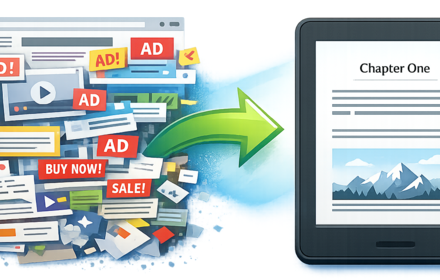
The problem? The World Wide Web feels permanent, but web pages can disappear overnight. Articles get taken down, paywalls go up, and links break, leaving valuable information lost. And even when articles stick around, reading a long piece in a browser (with ads, pop-ups, and infinite scroll temptations) is a terrible experience.
The good news: there are multiple ways to save web articles for offline reading, and the right method depends on your device, your reading habits, and how much control you want over the experience.
This guide covers seven proven methods, from one-click browser tools to EPUB conversion, along with the pros, cons, and ideal use case for each one.
The Offline Reading Landscape Has Changed
Before we dive in, a quick note about the state of the "read-it-later" category, because it's shifted dramatically.
In a surprising move, Mozilla announced it will shut down Pocket on July 8, 2025. Mozilla, which acquired Pocket in 2017, says it's closing the platform due to changes in how people browse and consume content.
And that wasn't the first domino. Omnivore, another popular read-it-later service, was shut down in late 2024. In both cases, it was the decision of a for-profit corporation killing a product they had acquired.
Two of the biggest names in offline reading, gone within a year. If you were relying on either of these services, your carefully curated article library vanished (or nearly did). This is a powerful reminder: the most reliable offline reading setup is one where you own the files, not a service that can disappear.
With that context, here are seven methods that work today, ranked from simplest to most powerful.
1. Browser Reading Lists (Easiest, Zero Setup)
Every major browser now includes a built-in reading list feature, and for casual use, it's the fastest way to save articles.
Safari Reading List
Safari Reading List is the strongest of the bunch. If you want a quick, no-fuss way to save articles for later, Safari's Reading List is built into the browser. It syncs across all your Apple devices through iCloud and automatically downloads articles for offline reading. To use it, just click Bookmarks > Add to Reading List on your Mac, or use the keyboard shortcut Command + Shift + D.
Compared to dedicated read-it-later apps, Safari doesn't offer many customization options. You can change the background colors and fonts, but you do get the benefit of having your saved articles accessible for offline reading. Best of all, Safari Reading List is completely free on Apple devices.
Chrome's Reading List
Chrome's Reading List is more limited. In Chrome, click the three-dot menu icon, then Bookmarks and Lists > Reading List > Add Tab to Reading List. There's no offline reading unlike Safari, but you can quickly mark articles as read or delete them.
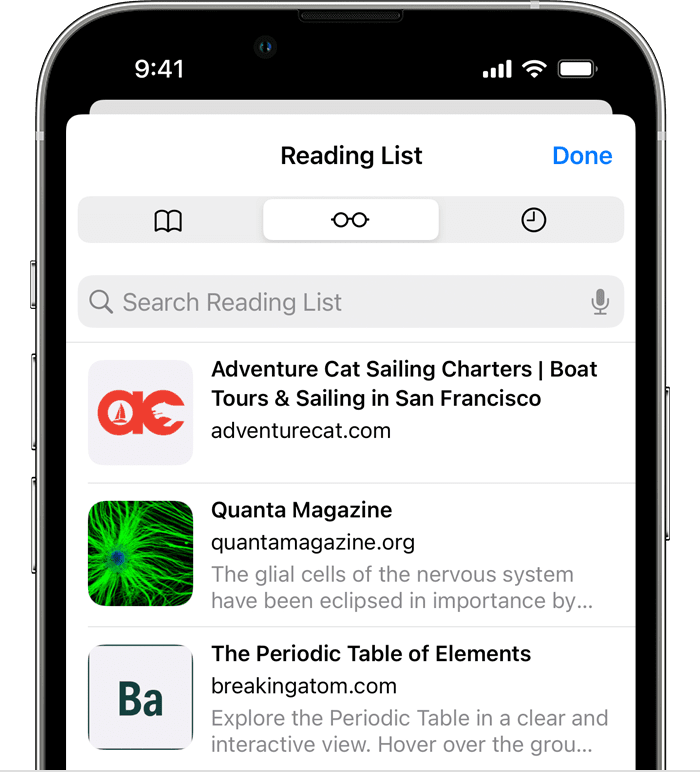
Safari Reading List: save articles and read them offline across all Apple devices.
Best for: Apple users who want zero friction. Save it, forget it, read it later, even without internet.
Limitations: No organization features (no tags, no folders), Apple ecosystem only for offline support, and you can't send articles to an e-reader.
2. Amazon's Send to Kindle (Best for Kindle Owners)
If you own a Kindle, Amazon's official Send to Kindle tools are the most seamless way to move web articles to your e-reader.
You can send web articles directly to your Kindle via two clicks using Amazon's Send to Kindle app or the Kindle Chrome Extension. There are four primary ways to send articles: the official Send to Kindle website, the desktop app, the Kindle app on your phone, or the Chrome extension.
The Chrome extension is the most popular option. "Quick send" instantly sends full pages to your library. "Preview and send" lets you see how your page will look on Kindle. "Send selection" sends only selected text on the webpage.
You can also send articles from your phone. If you find an article on your phone that you want to read on your Kindle, you can use the Kindle app to send it, and it works on both iOS and Android.
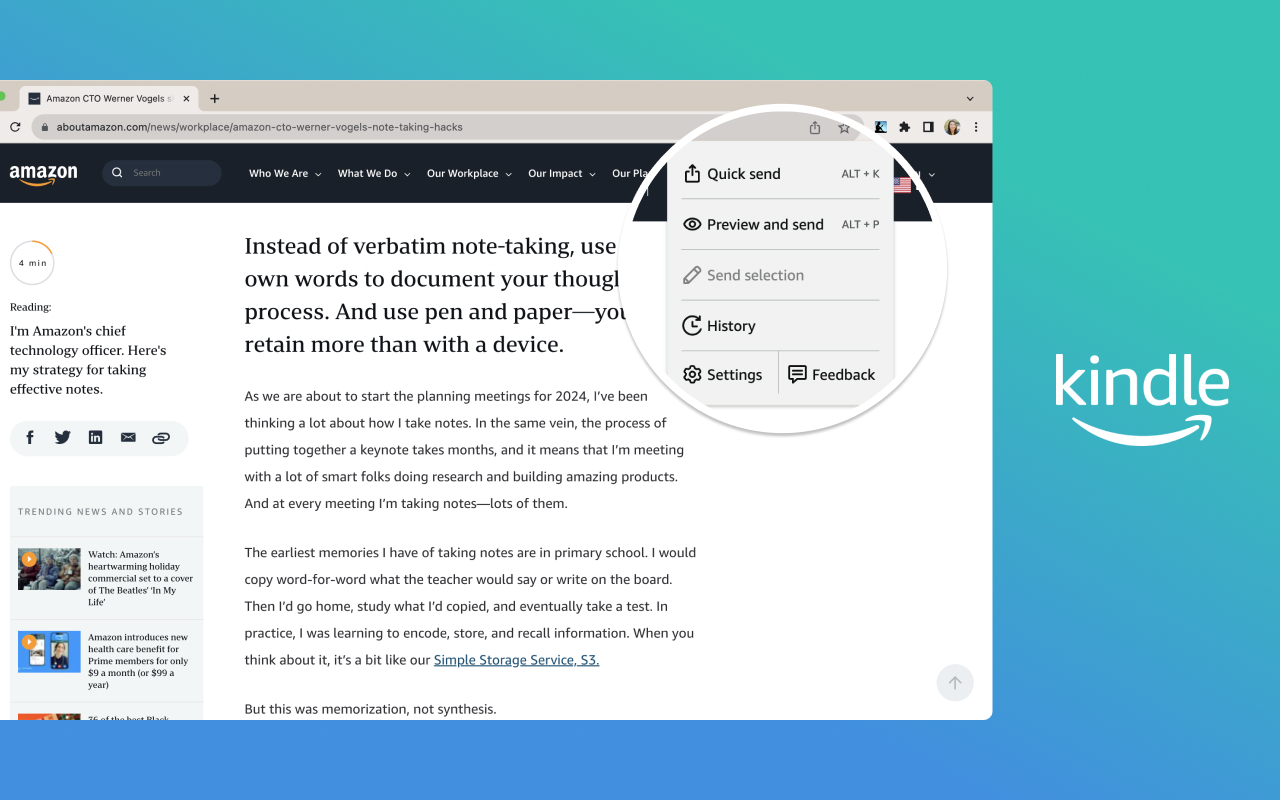
Amazon's Send to Kindle Chrome extension: quick send, preview, or send selected text.
Best for: Kindle owners who want one-click article delivery from their browser. It's fast, free, and the formatting is usually good.
Limitations: Kindle ecosystem only. Articles are sent individually, with no way to batch-combine a series into a single book. Formatting can be inconsistent depending on the website's structure. And you're still dependent on Amazon's service to deliver and store the content.
3. Instapaper (Best Standalone Read-It-Later App)
With Pocket gone, Instapaper is one of the oldest read-it-later apps on the market and the most obvious choice for most people. It's easy to use and offers a generous free version.
Instapaper syncs the articles and videos you save so that they're waiting for you on all your devices: iPhone, iPad, Android, Kindle, or Kobo eReaders. You can read anything you save, anywhere and anytime you want, even offline.
The app is built with readers in mind. Core features include saving most web pages as text only, stripping away the full-sized layout to optimize for tablet and phone screens, and a distraction-free reading environment. You can download up to 500 articles on your phone or tablet and store unlimited articles on the Instapaper website.
One unique feature is the speed reading button, which flashes one word at a time in quick succession. You can adjust the speed, but the idea is that this forces you to keep reading in a way that gets through articles more quickly.
Instapaper comes with Kindle integration built in, but only if you pay for the premium service, which is $6 a month.
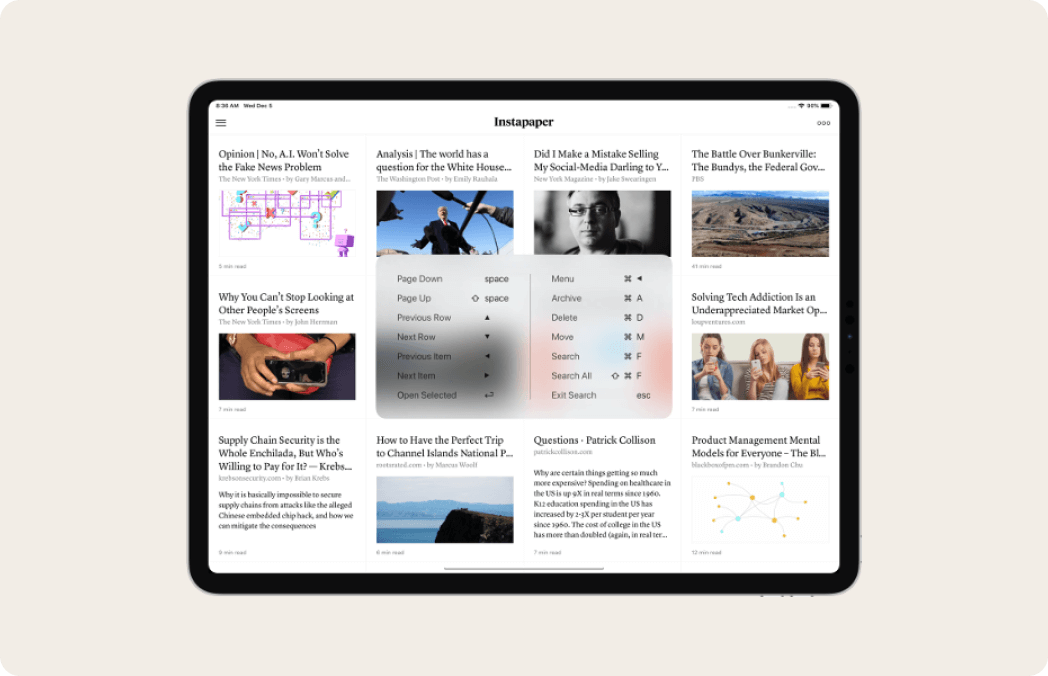
Instapaper on iPad: a clean, distraction-free reading experience across devices.
Best for: Cross-platform readers who want a clean, distraction-free experience with offline support on phones and tablets.
Limitations: Kindle sync requires a paid subscription. Articles live inside Instapaper's ecosystem. If the service ever shuts down (as Pocket did), you'd need to export. No batch conversion to EPUB.
4. Third-Party Send-to-Kindle Tools (Best for Kindle Power Users)
For Kindle users who want more flexibility than Amazon's official extension, tools like KTool and Push to Kindle offer richer features.
KTool lets you send web articles to Kindle: blog posts, Hacker News discussions, newsletters, and more. It also supports Wikipedia articles, Twitter threads, StackOverflow answers, Markdown, PDF, DOCX, and Standard Ebooks.
Push to Kindle is another strong option. It sends news stories, blog posts, and other articles to your Kindle for a better reading experience, removing ads and other distractions. Push to Kindle supports Kindle e-readers, Kindle apps, and PocketBook e-readers. You can send up to 10 articles each month for free, with subscriptions available for those who want to send more.
Best for: Kindle power users who want to send more than just basic web articles: newsletters, Hacker News threads, Twitter threads, and more.
Limitations: Most features require paid subscriptions. Still one article at a time. Dependent on external services for conversion and delivery.
5. Saving Web Pages as PDF (Simple but Flawed)
This is the method most people try first, and the one that usually disappoints.
The easiest way to save a web page is to download it to your computer. In Chrome, open the three-dot menu and select More Tools > Save page as. For Firefox, open the hamburger menu and choose Save Page As. On Safari, go to File > Save as or File > Export as PDF. You can also right-click anywhere on the page and select "Save as" with any web browser, or use the keyboard shortcut Ctrl + S on Windows, Command + S on macOS.
If you prefer the simplicity and familiarity of PDFs, converting your webpage to a PDF is an option for saving content for offline reading. PDFs maintain consistent formatting across devices and are fine for sharing, printing, or keeping your digital library organized.
Best for: Quick, one-off saves when you just need a snapshot of a page. Works on any device that can open PDFs.
Limitations: This is where the trouble starts. PDFs capture everything on the page: ads, navigation menus, cookie banners, sidebars. On a phone or e-reader, the fixed layout means tiny text, constant zooming, and a frustrating reading experience. Images can become unreadably small on smaller screens. There's no way to adjust font size on most PDF readers. For comfortable reading on e-readers, PDF is the worst format for web articles. For a detailed breakdown, read our EPUB vs PDF comparison.
6. Note-Taking Apps with Web Clippers (Best for Researchers)
If you're saving articles as part of a research workflow, note-taking apps with web clipping features can pull double duty.
Evernote Web Clipper lets you curate whole web pages or select sections into digital notebooks. It offers features like tagging and annotating to keep everything organized.
Note-taking apps like OneNote, Obsidian, and Evernote offer web clippers that extract articles and save them for future reference. However, read-it-later apps do one thing: store articles you intend to read later. This is different from note-taking apps, which can be used for clipping articles but aren't primarily designed with reading in mind.
For self-hosters and privacy-conscious users, Wallabag is arguably the most popular self-hosted alternative. The platform is easy to deploy and includes all of the essential functionality required for archiving, saving, and sharing content.
Best for: Researchers, students, and knowledge workers who want to save, annotate, and organize articles alongside their own notes.
Limitations: The reading experience is secondary. These tools are optimized for capturing and organizing, not for comfortable long-form reading. Offline support varies. No e-reader integration in most cases.
7. Converting Web Articles to EPUB (Best for E-Readers and Long-Term Archival)
This is the most powerful method, and the one that gives you the most control. Instead of saving articles inside someone else's app or converting to a rigid PDF, you convert web content directly into EPUB format.
Converting web pages to EPUB ebooks not only lets you read offline anytime, but also provides a better reading experience. EPUB is the universal ebook format. It works on Kindle, Kobo, Apple Books, Google Play Books, and virtually every reading app and device on the planet.
Unlike PDF, EPUB files reflow text to fit any screen size, support adjustable fonts and margins, and produce much smaller file sizes. Unlike read-it-later apps, an EPUB file is a file you own. No account required, no service dependency, no risk of the platform shutting down and taking your library with it.
Why Cepub is built for this use case
Most web-to-EPUB converters handle one page at a time. But what if you found a 10-part tutorial series? Or 15 articles from the same author you want to read over the weekend?
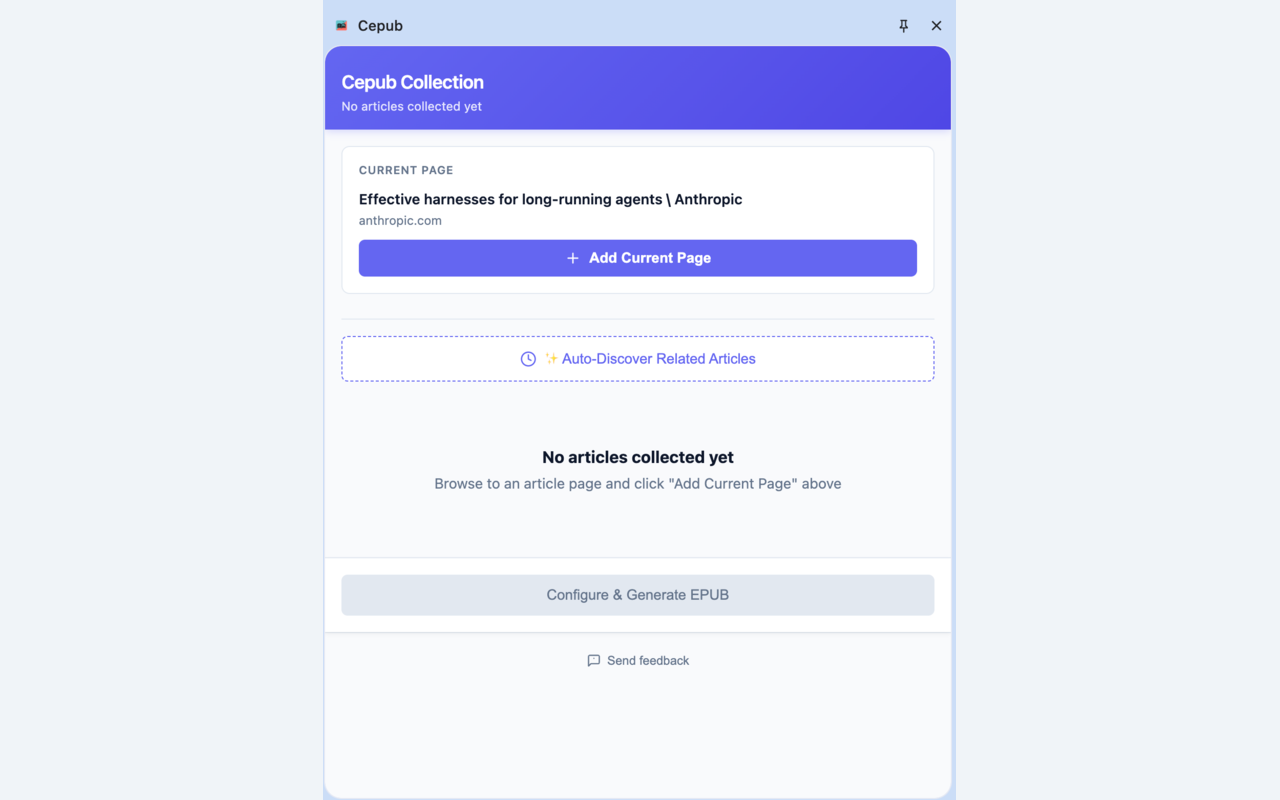
The Cepub extension interface: add articles, auto-discover related content, and convert to EPUB.
Cepub's Auto-Discover feature scans the page for related articles, lets you select up to 50 of them, drag-and-drop them into your preferred reading order, and converts them all into a single EPUB with proper chapter navigation. It strips out ads, navigation bars, cookie popups, and all the other web clutter, keeping only the article content and images.
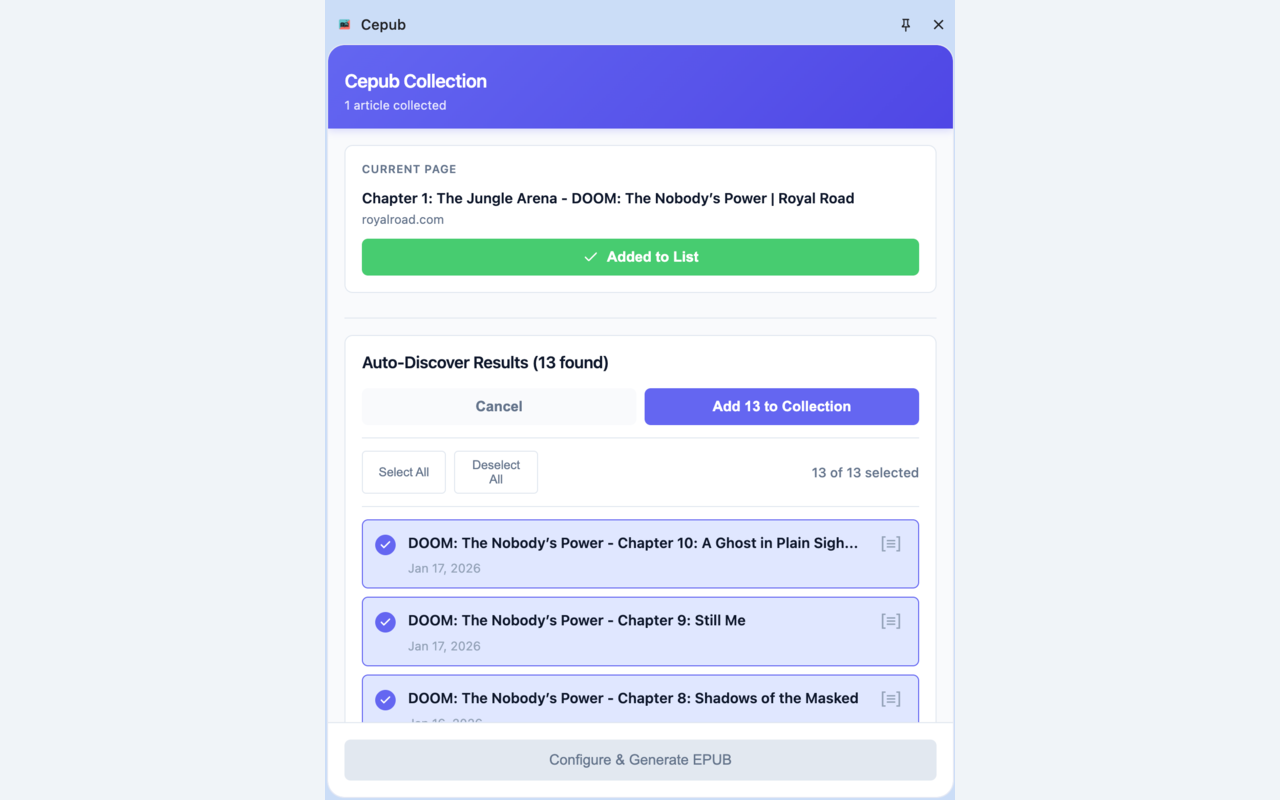
Auto-Discover finds related articles automatically, no manual URL copying needed.
The result is a clean EPUB file that looks like a real book on your e-reader. Adjustable fonts. Proper chapter navigation. All images embedded and available offline. Custom metadata (title, author, language) so your e-reader library stays organized.
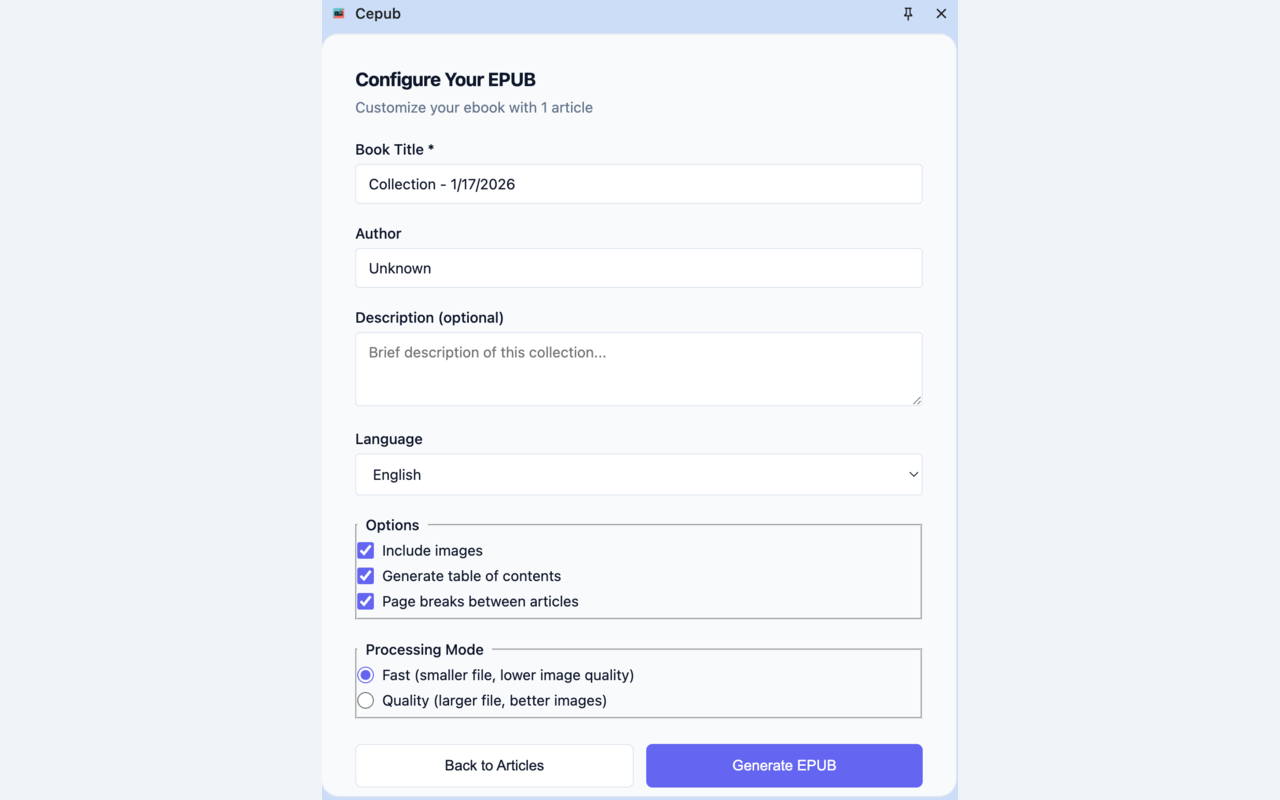
Configure your EPUB with custom title, author, language, and export options.
Best for: E-reader users who want the cleanest reading experience possible. Tutorial series readers who want multiple articles in one book. Anyone who wants to own their saved articles as portable files, independent of any service.
Limitations: Requires a conversion step (though Cepub makes this very fast). You need to transfer the EPUB file to your device (via Send to Kindle email, USB, or cloud storage).
Which Method Should You Choose?
The right method depends on your device and your reading habits. Here's a quick decision framework:
| If you want to... | Use this |
|---|---|
| Save a few articles on iPhone/iPad | Safari Reading List (zero setup, free) |
| Read single articles on Kindle | Send to Kindle Chrome extension |
| Read tutorial series on Kindle/Kobo | Cepub (batch conversion + auto-discover) |
| Use a dedicated reading app on phone | Instapaper (best standalone option) |
| Save articles for research with notes | Evernote Web Clipper or Wallabag |
| Maximum portability and long-term archival | EPUB conversion (Cepub, dotepub, EpubPress) |
The Lesson from Pocket and Omnivore
The shutdown of Omnivore highlights a critical challenge in the read-it-later app space: building a sustainable service that can support a dedicated user base while maintaining quality features. While the open-source nature was appealing, the reality is that running a reliable service requires significant resources for development, server costs, and mobile app maintenance.
The same lesson applies to Pocket's closure. Pocket was never flashy, but it quietly became an indispensable tool for many who wanted a cleaner, more intentional way to consume content online. It earned awards, supported local journalism, and curated thoughtful collections. But like so many other useful digital services, its time came to an end.
This is why format-based solutions, especially EPUB, are worth considering alongside app-based ones. An EPUB file on your device doesn't depend on anyone's servers staying online. It doesn't require a subscription. It doesn't disappear when a company gets acquired or decides to "focus resources elsewhere."
Saving content offline is a way to preserve knowledge, whether for personal reference or historical record. The method you choose should reflect how much you value that permanence.
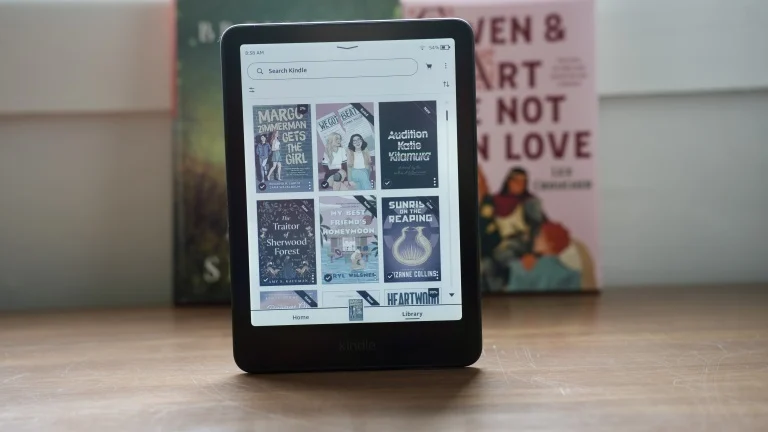
A personal library of converted articles: always available offline, no service dependency.
Frequently Asked Questions
What is the best way to read articles offline?
It depends on your device and reading habits. For iPhone and iPad users, Safari Reading List is the easiest. For Kindle owners, Send to Kindle works for single articles, and EPUB conversion with tools like Cepub is best for tutorial series and batch conversion. For cross-platform use, Instapaper is the top standalone app.
What happened to Pocket and Omnivore?
Mozilla shut down Pocket on July 8, 2025, and Omnivore was shut down in late 2024. Both closures highlight the risk of relying on service-based solutions for offline reading. File-based solutions like EPUB give you permanent ownership of your saved content.
Can I convert multiple web articles into one ebook?
Yes. Cepub lets you batch-convert up to 50 web articles into a single EPUB file with proper chapter navigation. Its Auto-Discover feature finds related articles automatically, making it ideal for tutorial series and multi-part content.
Is EPUB better than PDF for offline reading on e-readers?
Yes. EPUB files reflow text to fit any screen size, support adjustable fonts and margins, and produce smaller file sizes. PDFs have fixed layouts that require constant zooming on e-reader screens. Read our full EPUB vs PDF comparison for more details.
Start Reading Offline Today
Convert web articles into clean EPUBs for your e-reader in seconds. No more open browser tabs, no more squinting at tiny PDFs.
Try Cepub FreeConclusion
You don't need to pick just one method. Many people combine approaches: Safari Reading List for quick saves during the day, Send to Kindle for individual articles before bed, and Cepub for converting tutorial series into proper ebooks on the weekend.
The point is to stop letting great articles languish in open browser tabs. Save them properly. Read them on your terms, on the device you love, at the pace you choose, without internet, ads, or distractions.
Your reading time is too valuable for squinting at tiny PDFs and fighting with pop-ups.
Related articles:
- EPUB vs PDF: Which Format Is Best for Reading on Your E-Reader?
- How to Read Articles Offline Without Ads, Popups, and Clutter
- How to Binge-Read Web Novels Offline Without Ads or Clutter
Sources
- Pocket has shut down - What you need to know - Mozilla Support
- Mozilla is shutting down Pocket, its read-it-later app - Nieman Journalism Lab
- The 4 best read it later apps to save content - Zapier
- How to send web articles to your Kindle to read later - Popular Science
- Complete Guide to Converting Web Pages to EPUB eBooks - E-Ink Blog
- How to build an offline reading library and access articles anytime - Apple Insider
- Best Read-It-Later Apps in 2026 - Cloudwards
- Pocket app is going away, so you should export your data now - Android Central